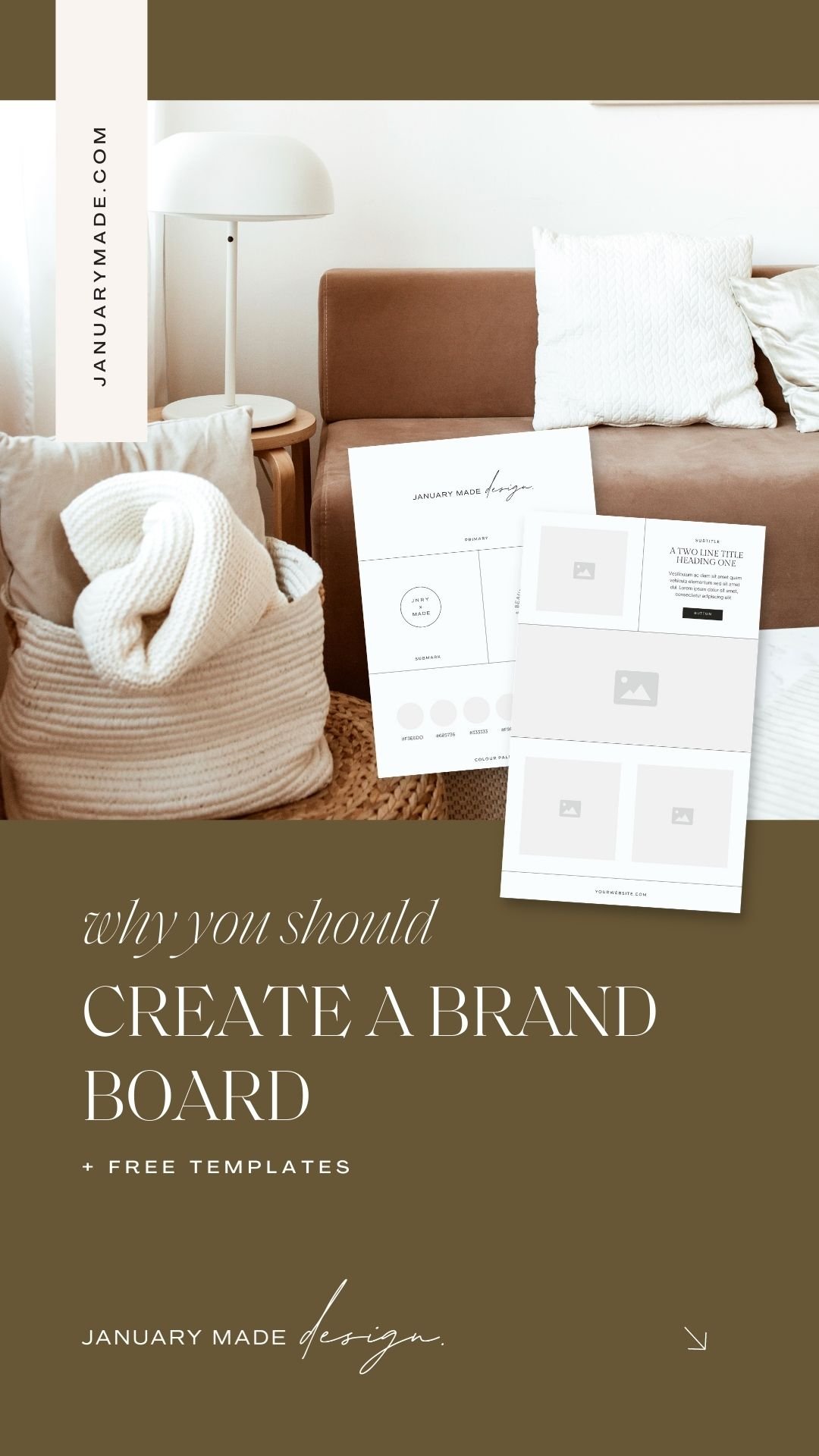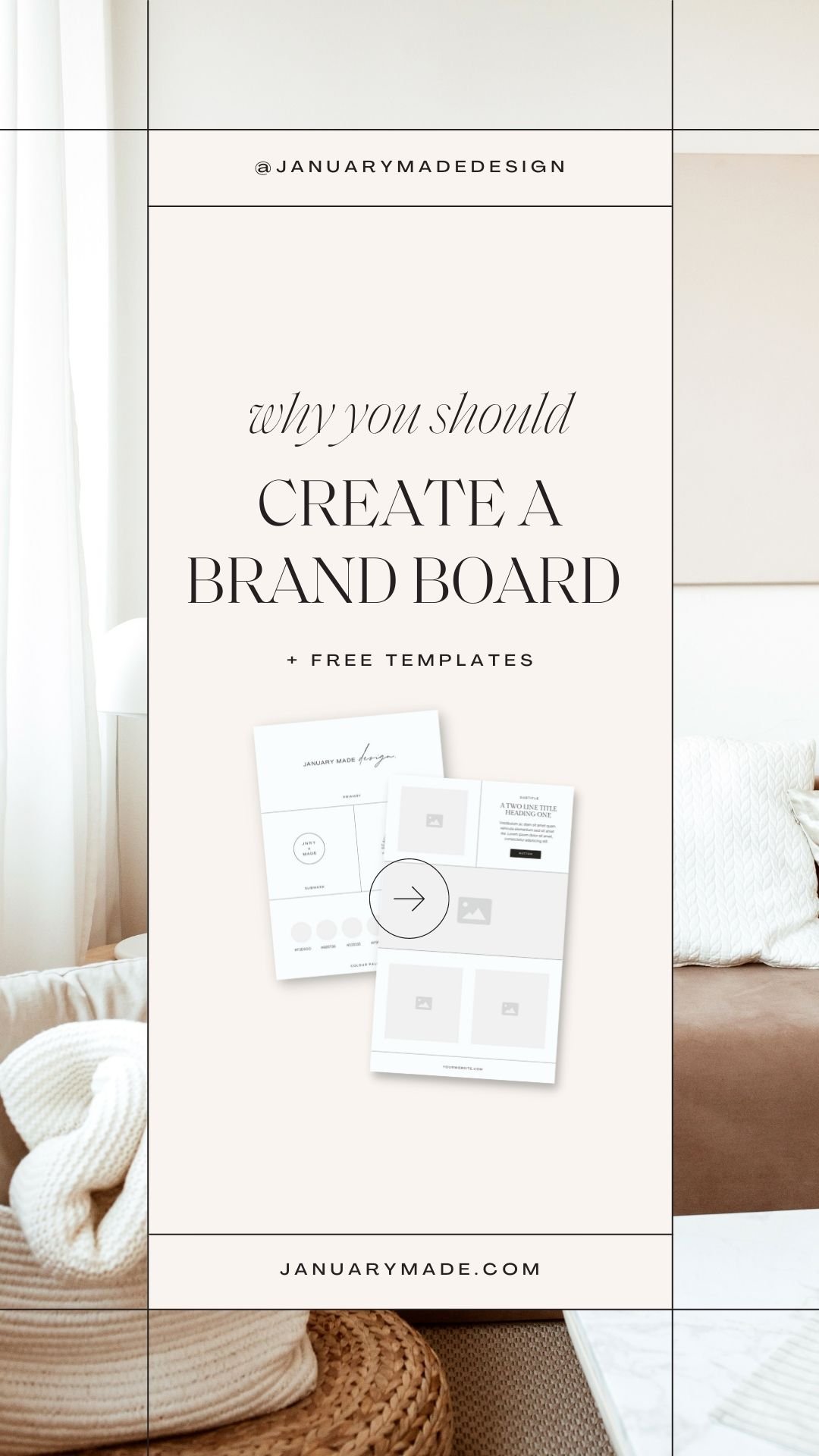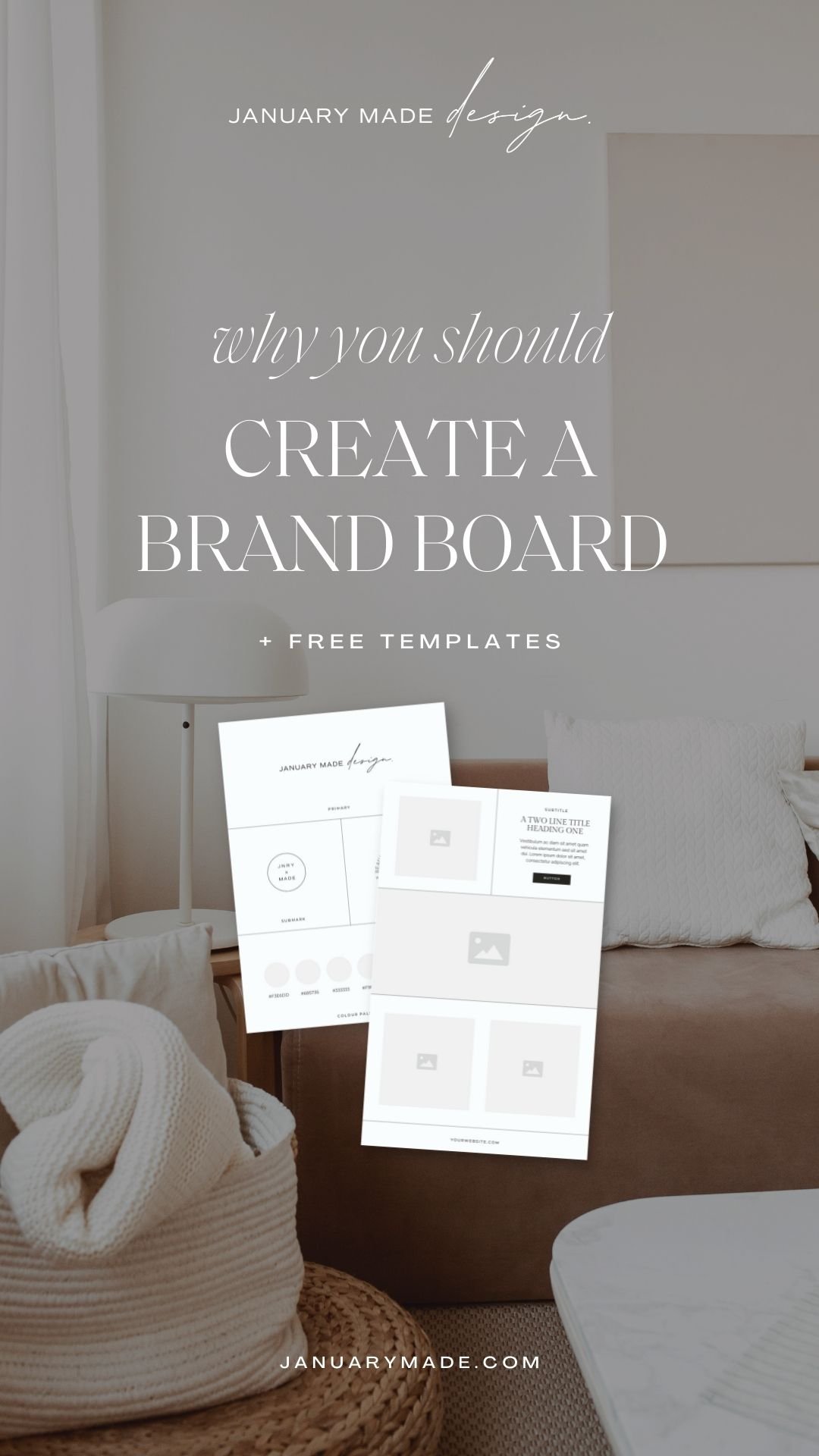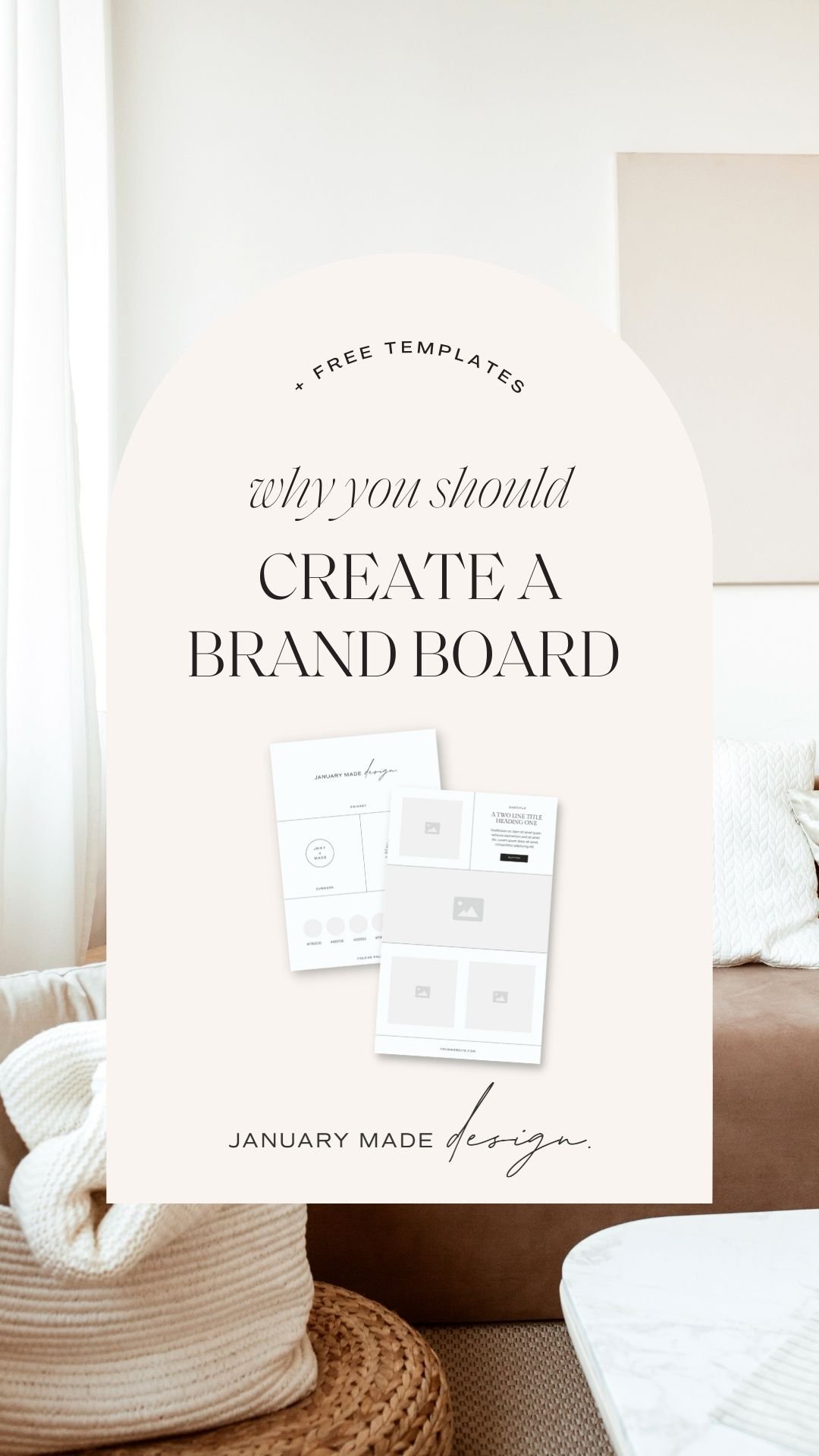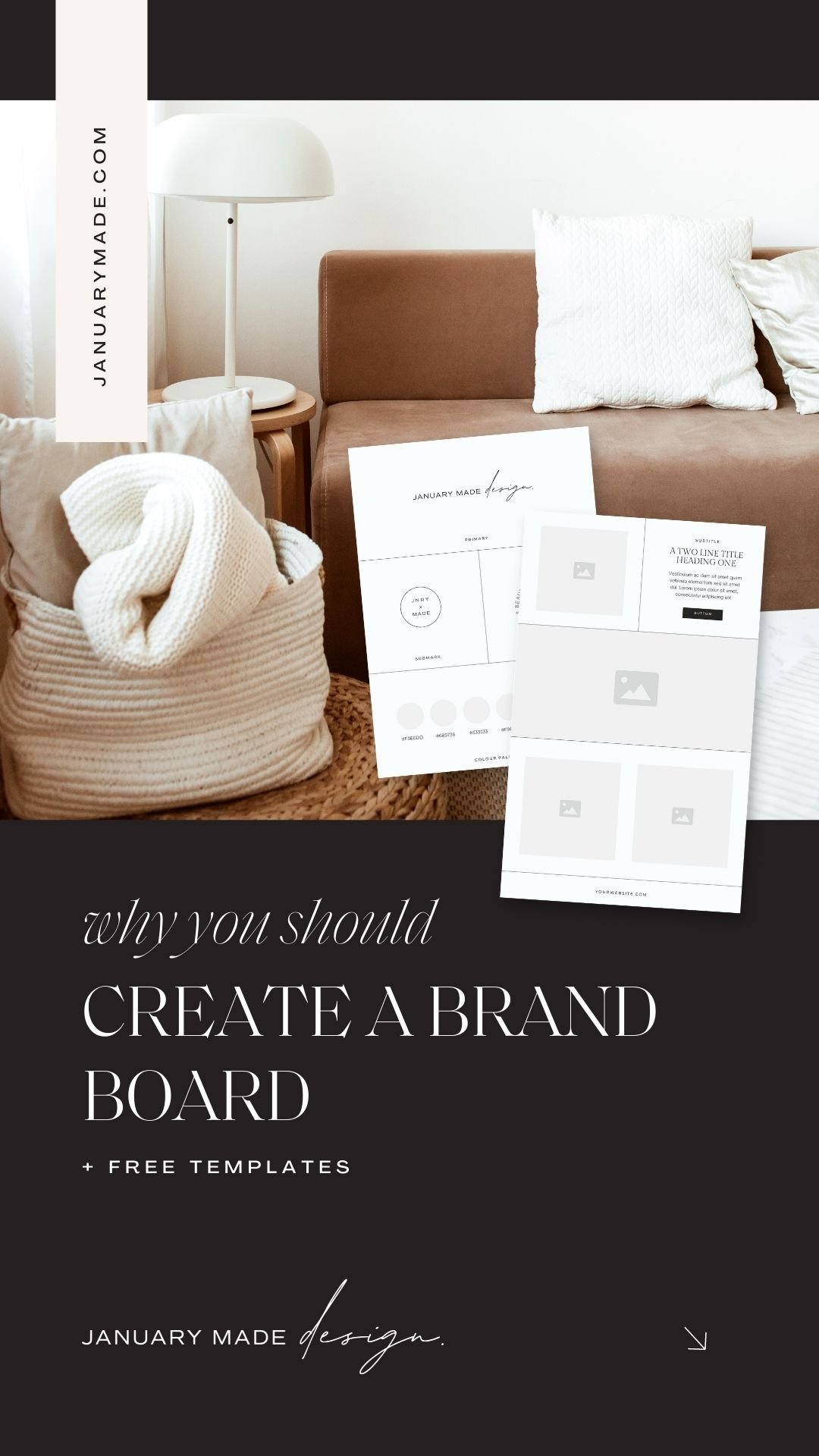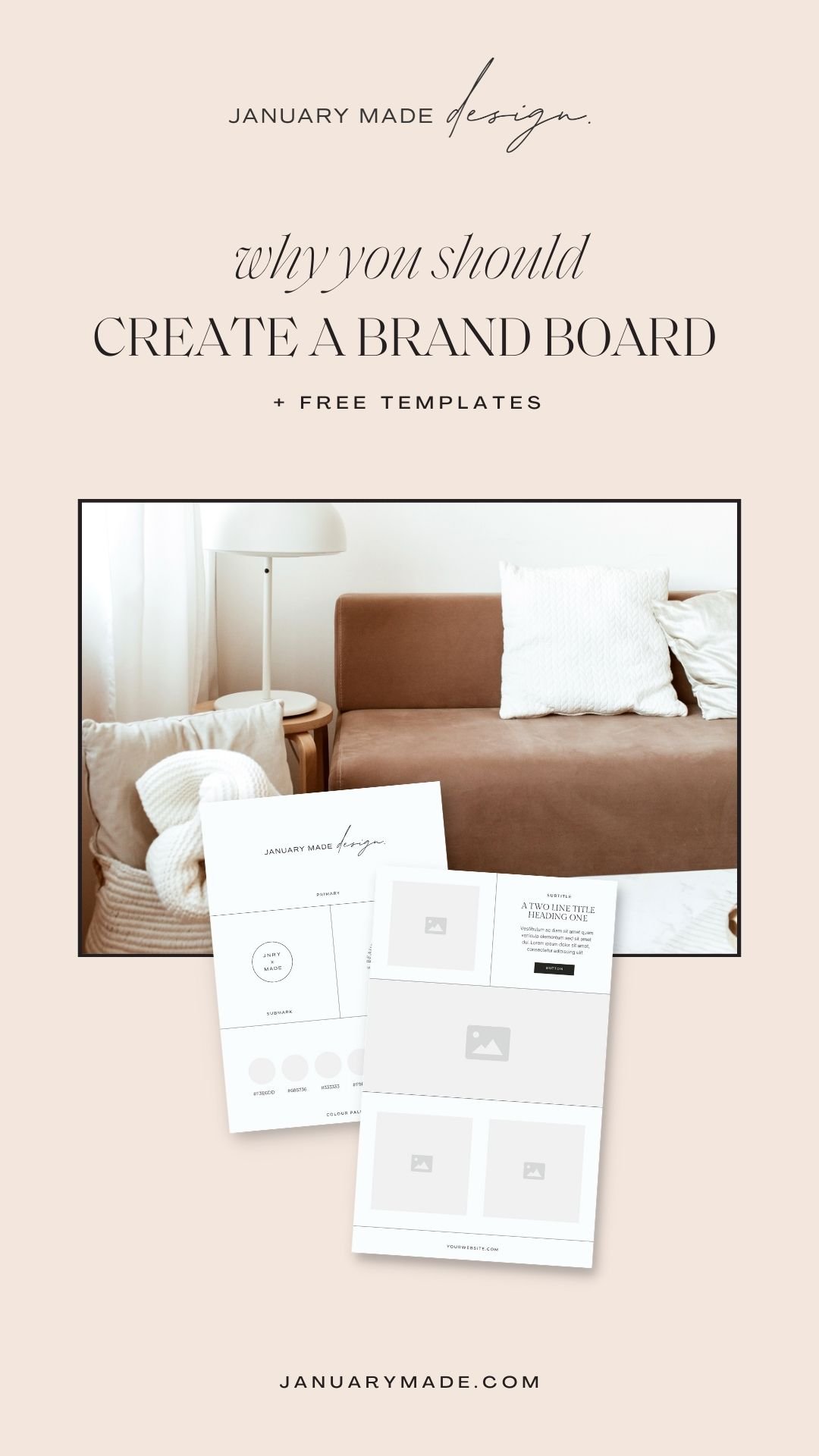
Why You Should Create A Brand Board + FREE Illustrator Template!
The WHY
"I have already created all the individual pieces of my own/clients branding, why do I need to present a brandboard?"
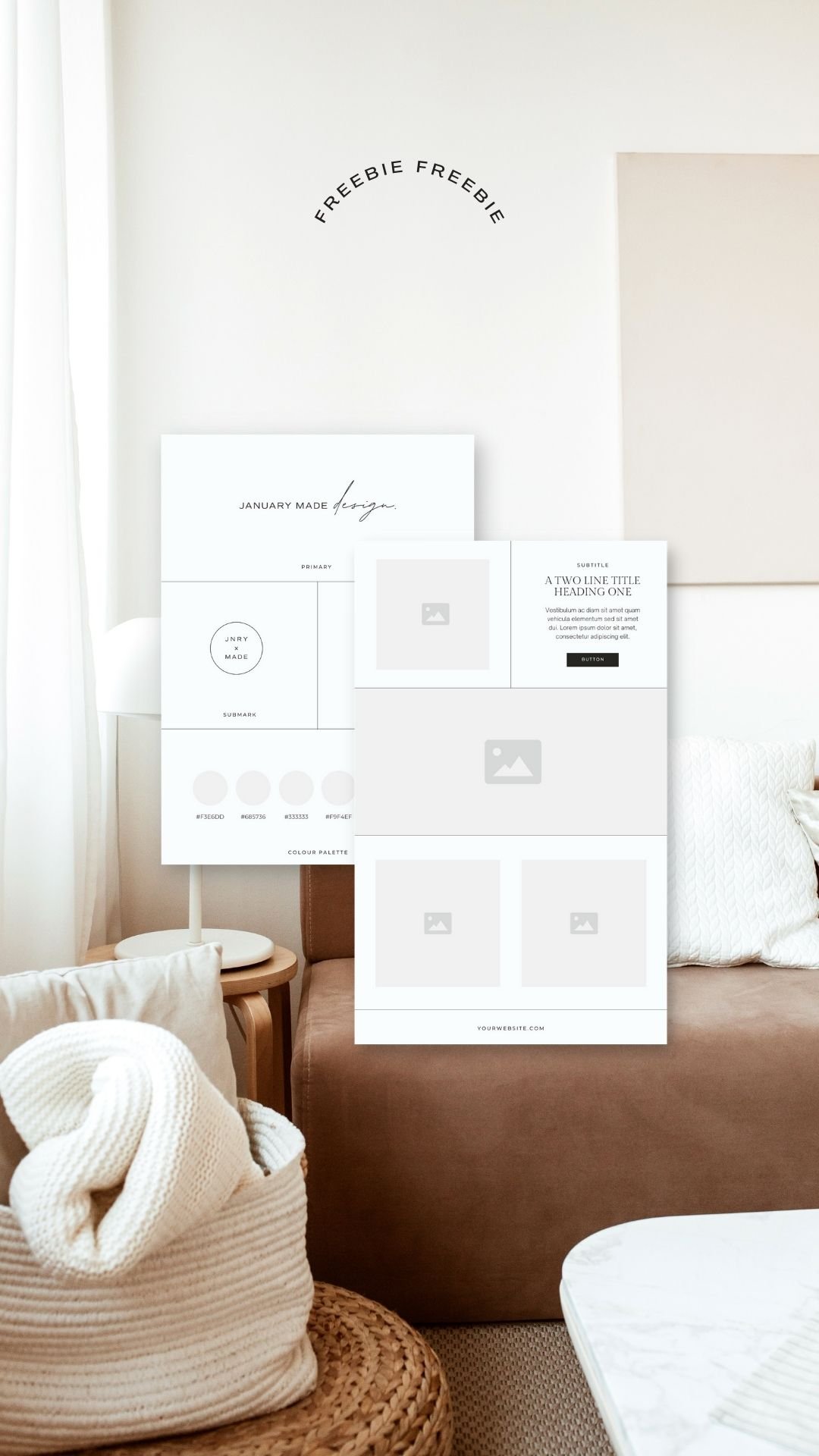
If you are asking this, then it is an excellent question! A Brand Board is your final collection of fonts, color, and patterns that are curated into a board that represents your new/refreshed brand as a whole. They are a great way to showcase a brand, and help the viewer to get an all round picture of your style and aesthetic. A brand board can include content like sumark and alternative logo designs, placements, images, iconography and more! Sometimes a brand board will be elaborated on further into more of a brand guideline book for larger companies, but often a one-page document is perfect for a blog or small business to quickly refer back to for style guidelines.
Here's what I include in my brand boards:
- Main/primary logo.
- Logo variation
This is another version of the main logo, with a slight difference. It could be a vertical version, it could have a shape around it, it could be in another color, or it could be textured... - Sub mark
A sub mark is usually another smaller abbreviated element that is pulled from the main logo, and often used as a favicon or profile picture. - Main color palette
- Patterns / Iconography / Graphic Elements
Any other supporting graphics like these that add to the overall branding. - Fonts
- Moodboard with imagery
The HOW
After you have finalised all your design assets from your branding project, start compiling them all onto this one brand board template to showcase your brand as a whole. If you need a smaller file size, you could save your logos etc as pngs and add them to the board, but personally I prefer to work with the original vectors just incase I need to tweak the sizes/alignment etc.
Download my brand board template to start!
ย
Personalising the Brand Board Template
So let's get started! Download the Brand Board Illustrator Template and use this step by step guide to personalise it to your own branding.
Use these steps:
- If you want the original font used in the board, download Montserrat free from FontSquirrel
- Download the Brand Board Illustrator Template
- Open in Adobe Illustrator
- Begin adding your own branding elements to the board, starting with your Primary Logo, Logo Variation/Alternatives, and Submark
- Next, add your own colour palette by using the ink dropper to change the circles above Colour Palette
- Add your Hex value (example #E29CB1) below the circles
- Handy tip - Use Coolors to find the name of your colour, and go to Settings (little cog) to toggle on the Secondary Information to see the RGB codes
- Next, add your own font selections, and you could also add where they can be downloaded from
- On the left side panel, there is room for Iconography and Patterns, but feel free to add whatever elements are applicable to your own brand
- Finally, to edit the moodboard at the bottom, copy and paste your imagery in, and one by one send your images to the back of the grey boxes, making sure they are just slightly bigger than the width and height of the grey box
- Once you have done this, one by one select an image + the box on top, right-click and select Make Clipping Mask
- To edit the image within the clipping mask, simply double or triple click into the box and change the image size or paste in different one
- For more help with Clipping Masks, see Y Designs tutorial
- To export your brandboard, go to File > Export > Export for Screens > Change name of the artboard on left to whatever you want the file to be called, select where you want it to be exported to (little folder icon), set the Format to 72ppi PNG for a smaller web size, or around 150ppi for a higher-res version
And you have now created a fully personalised brand board that you can use over and over again! Let me know in the comments below if you found this helpful, and if you want to see any other templates created to download :)